Does Startpage Use AI?
Startpage did not show AI answers on any of our 7 web queries, and its results come from Google and Bing.
Startpage: No AI answers on any of our 7 web queries. Results come from Google and Bing. Tested Oct 6, 2026 in the US on Chrome desktop, signed out.
Updated
Test results
| Status | No AI. With default settings at the tested address, no generative AI appeared in any of our test queries. |
|---|---|
| Generative answers by default | No |
| Can disable AI | Not applicable |
| Setting persists | Not applicable |
| AI images | No filter |
| Result source | Mixed. Startpage passes your query to Google and Bing without your identity. |
| Login required | No |
| Price | Free (paid ad-free plan available) |
| Privacy | Proxies results without passing your IP. Privacy policy |
| Mobile (Android / iOS) | Phones not tested yet. |
| Tested on | Chrome 154 desktop (macOS), US, signed out |
| Address tested | www.startpage.com |
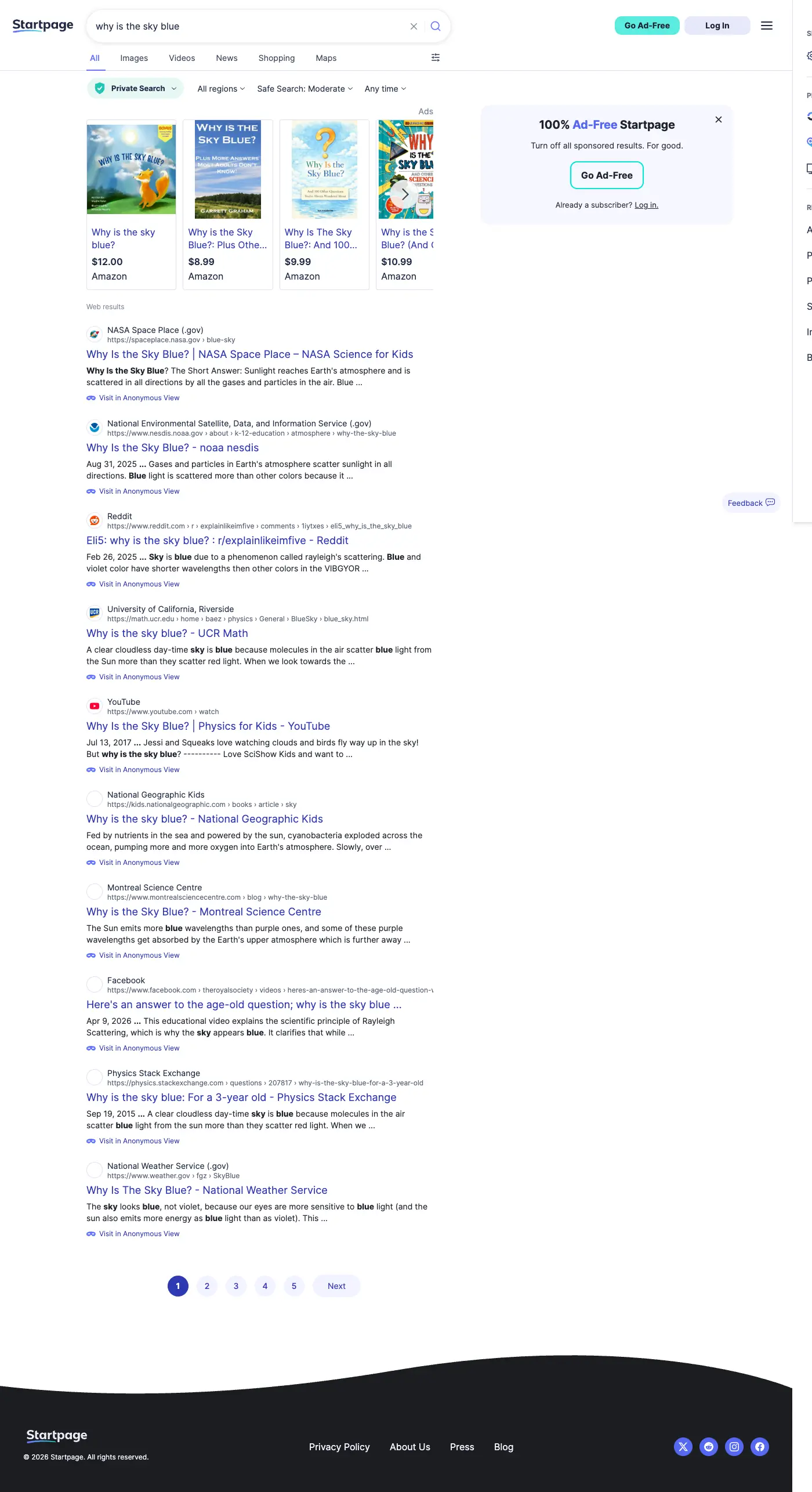
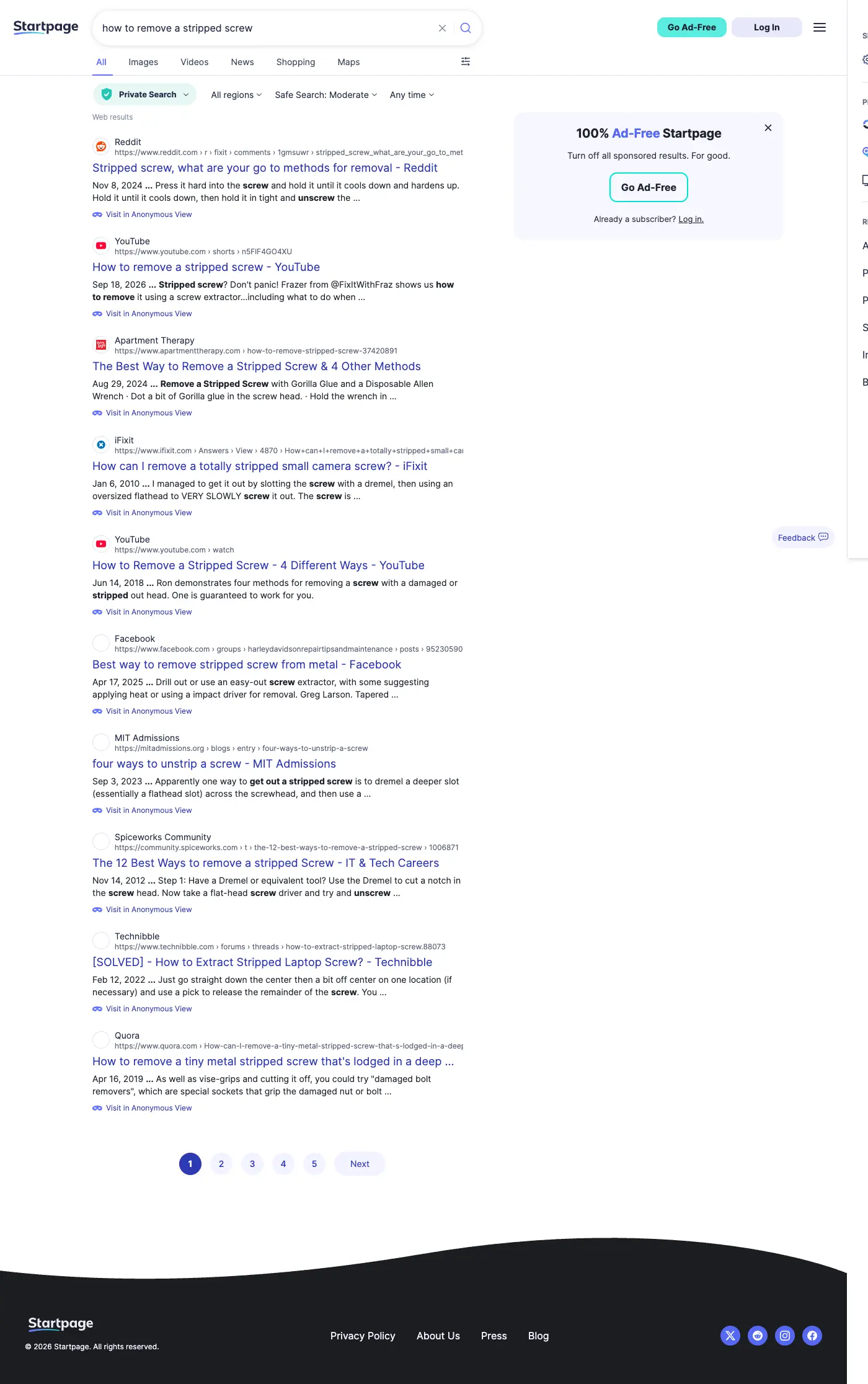
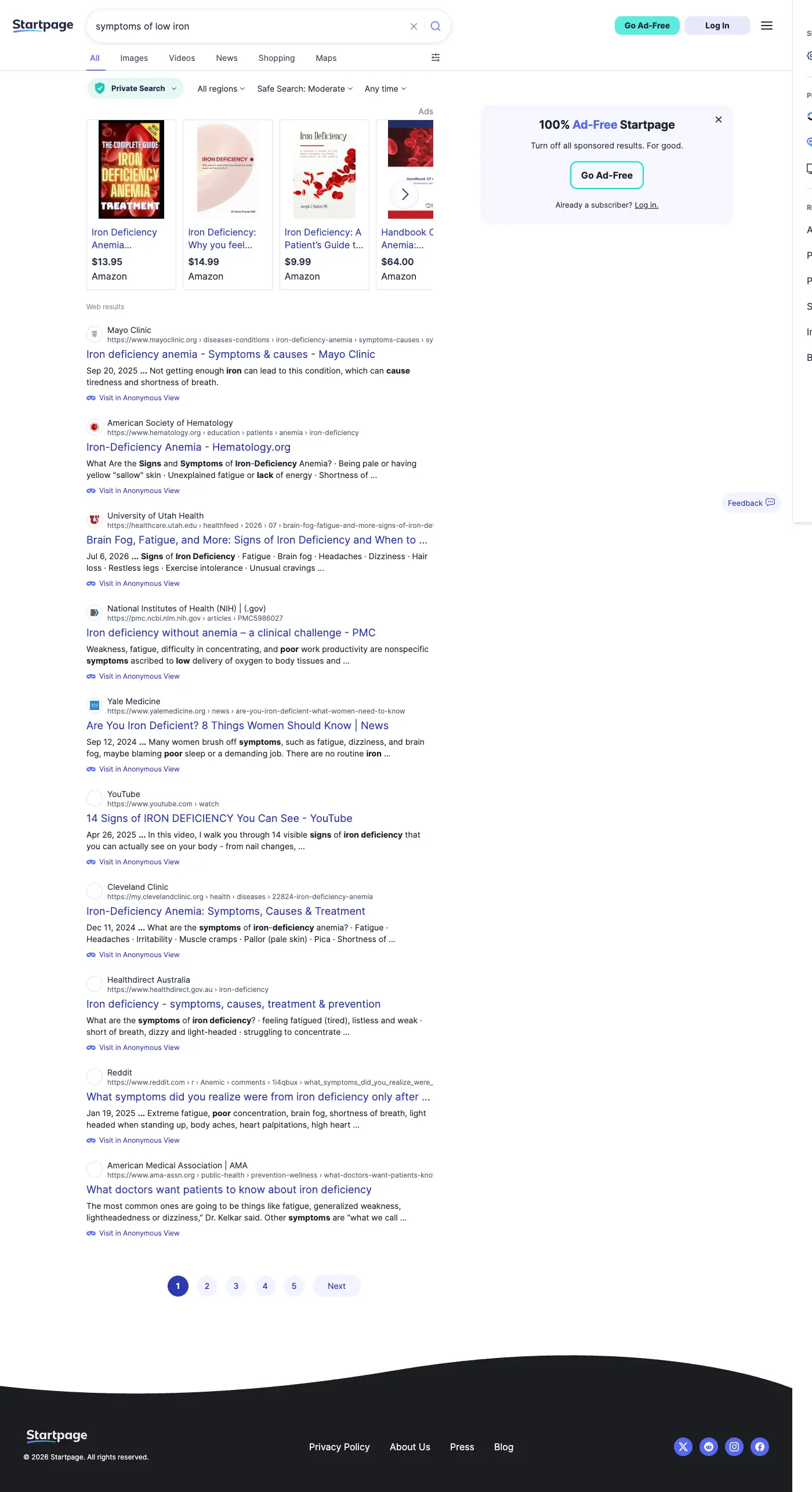
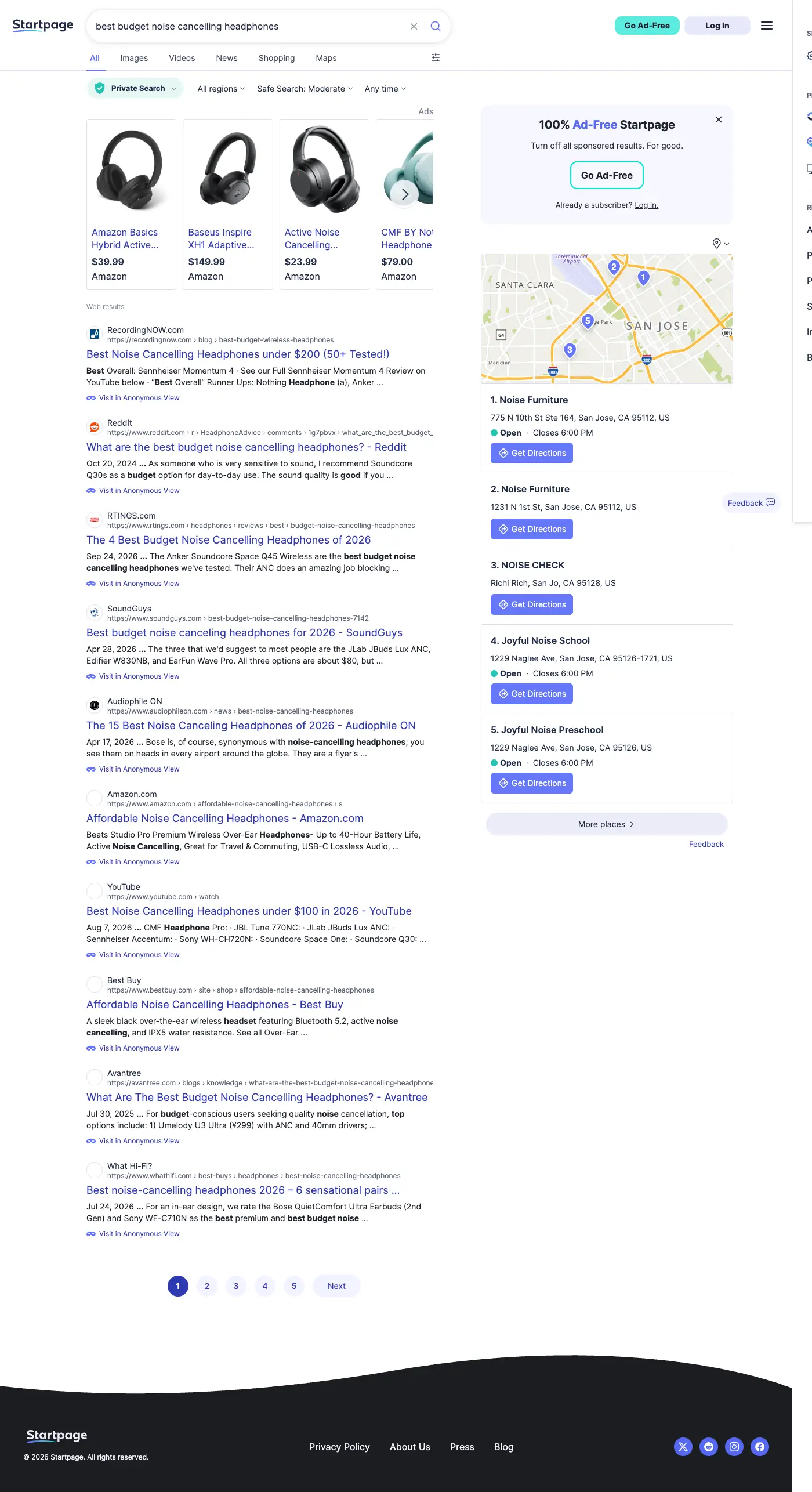
Screenshots from our test
Caveats
- Shopping ads can appear above results on product queries.
- There is no filter for AI-generated images.
Startpage's results come from Google and Bing. Read what udm=14 does in Google.
What the Oct 6 screenshots show
The hands-on test ran on Oct 6, 2026. The browser was Chrome 154 desktop (macOS). The IP address was in the US. The session was signed out. We opened www.startpage.com. Every engine in that round got the same eight queries. Seven were web searches. One was an image search.
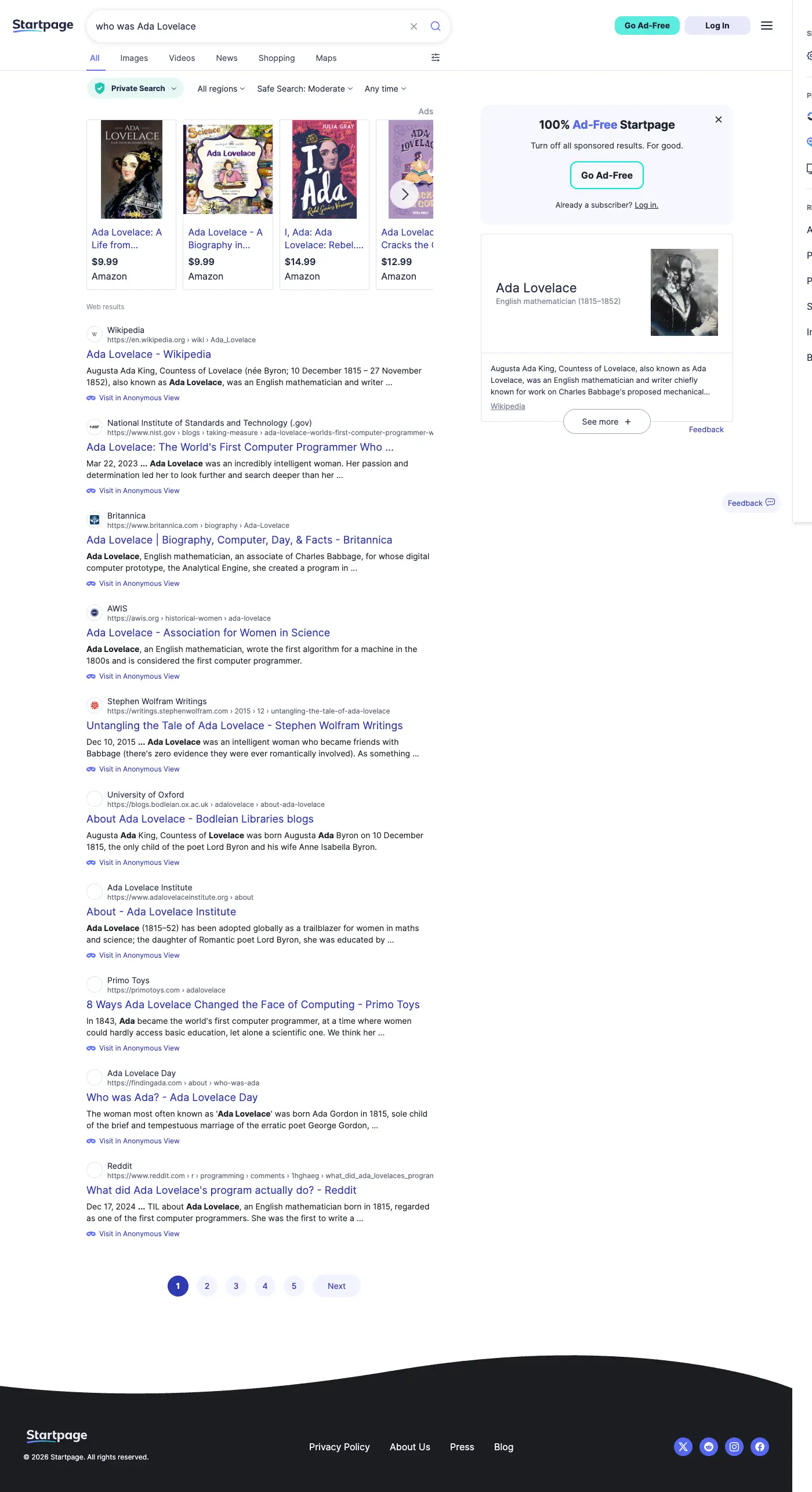
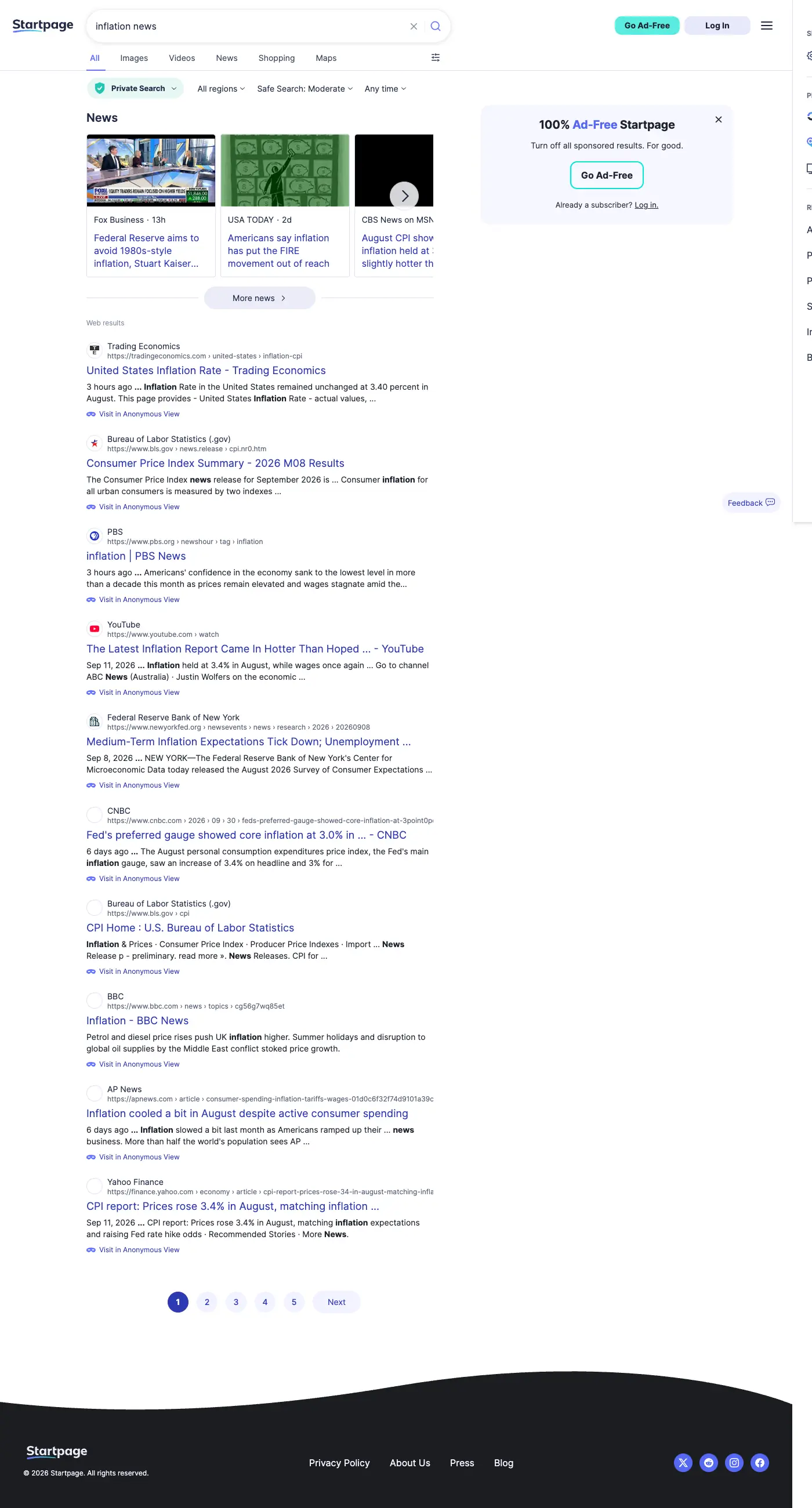
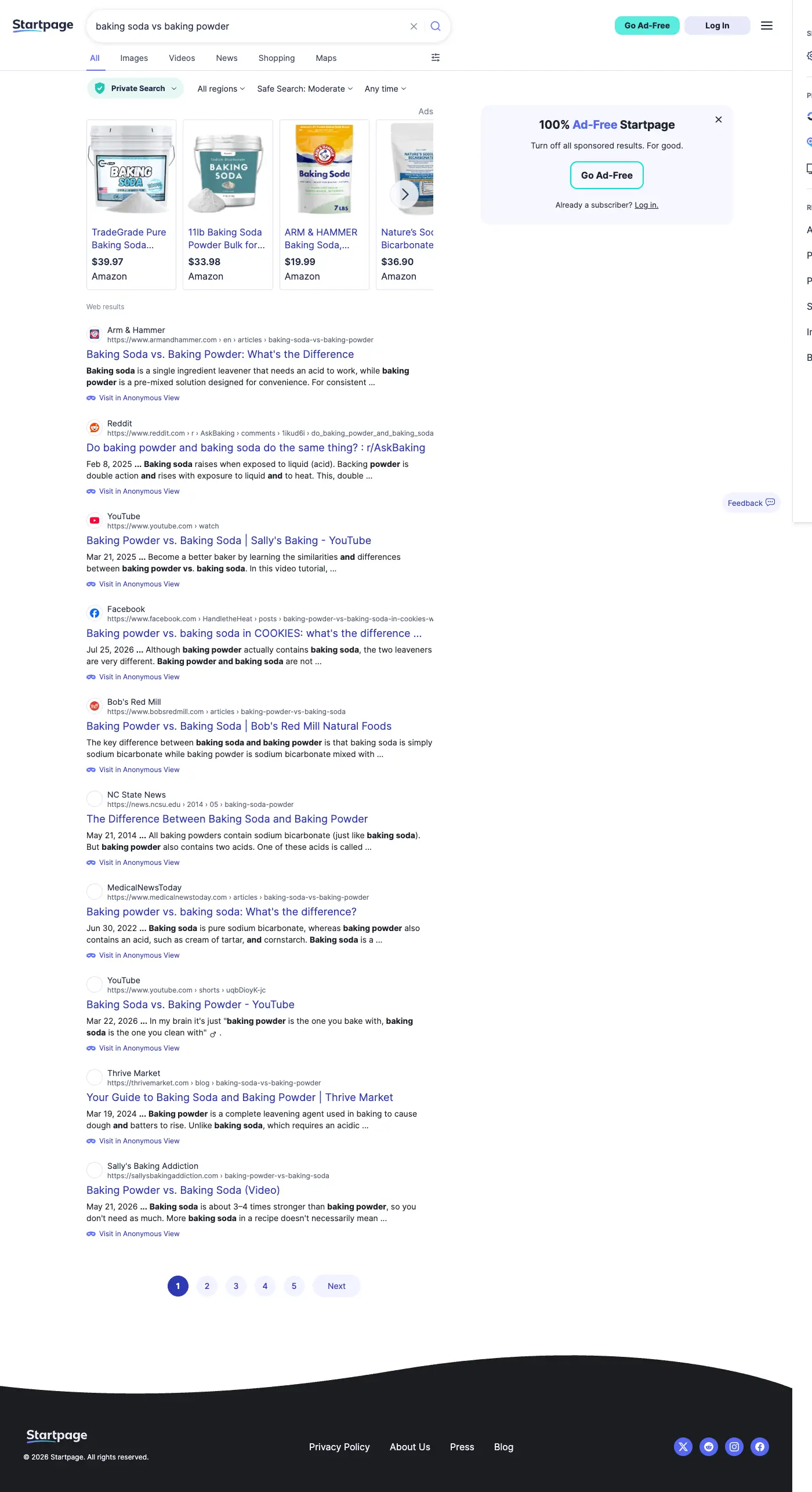
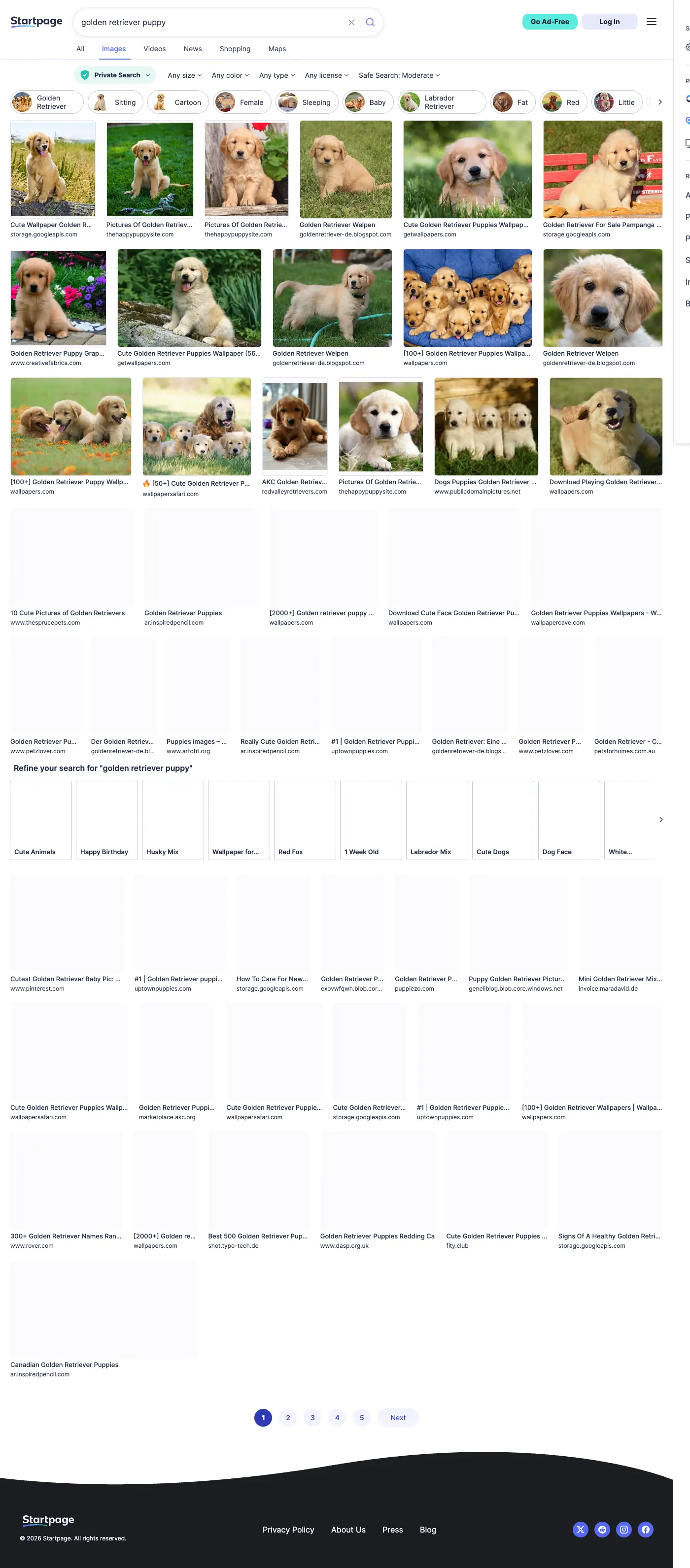
None of the seven web screenshots shows an AI answer. The image screenshot shows image results. It does not show an AI label or an AI-image filter. Startpage has no filter for AI-generated images. That limit is a caveat from this test. It is not a second round.
- "why is the sky blue": no AI answer.
- "how to remove a stripped screw": no AI answer.
- "symptoms of low iron": no AI answer.
- "best budget noise cancelling headphones": no AI answer.
- "who was Ada Lovelace": no AI answer.
- "inflation news": no AI answer.
- "baking soda vs baking powder": no AI answer.
- "golden retriever puppy (image search)": image results; no AI label or AI filter shown.
The set covers a knowledge question, a how-to, a health question, a product search, a person, a news query, a comparison, and an image search. The locked wording is on the methodology page. We did not change the queries for Startpage.
Shopping ads can appear above results on product queries. The product query was "best budget noise cancelling headphones". The screenshot note records no AI answer. It does not say whether a shopping ad was visible. We are not adding that detail after the fact.
Startpage's help page says Startpage has no index of its own. It acts as an intermediary to Google and Bing. We checked that page on Oct 6, 2026. Our note says Startpage passes your query to Google and Bing without your identity. The privacy line says it proxies results without passing your IP. Login is not required. The price label is "Free (paid ad-free plan available)". We did not buy the paid plan. That purchase is untested.
A second help page says Instant Answers, such as Wikipedia and weather, are on by default. You can switch them off under Appearance. We checked that page on Oct 6, 2026. The screenshot notes do not mention an Instant Answer box. We do not claim one was missing.
Phones are untested. The mobile row says phones are not tested yet. If you want to stay on Google on a phone, turn off AI Overviews on your phone. We have not repeated the Startpage queries on a phone. That check is untested.
Set Startpage as your default search in Chrome
Chrome on desktop (Windows, macOS, Linux).
If you want a different engine, see the full list of search engines that don't use AI.
- Open Chrome. At the top right, select the three-dot menu (⋮) → Settings.
- On the left, select Search engine → Manage search engines and site search.
- To the right of the Site search row, select Add. In the Add site search dialog, Name: Startpage. Shortcut: sp. URL with %s in place of query: not verified yet. Select Add.
- Next to the new entry, open the three-dot menu (⋮) → Make default.
- Chrome managed by work or school may have the search engine locked by an administrator.
- In some countries, a Guest profile cannot set a custom site search as the default.
- Firefox, Safari, Edge and phones: not tested yet.
How to set it as your default search engine
These steps come from browser help pages. We have not completed a hands-on test that Startpage stays the default after them. That result is untested. The search URL is not verified yet, so this page does not print one.
Chrome
Chrome on a computer is the section above, "Set Startpage as your default search in Chrome." Chrome Help documents that path. We checked it on Oct 12, 2026. Open Chrome. At the top right, select the three-dot menu, then Settings. On the left, select Search engine, then Manage search engines and site search. To the right of the Site search row, select Add. The dialog is Add site search. The name in our steps is Startpage. The shortcut is sp. The URL field is "URL with %s in place of query." Then open the three-dot menu and select Make default.
Chrome Help says a work or school admin may choose the default search engine. It also says that in some countries a Guest profile cannot set a custom site search as the default. Chrome on Android is a different help page. It says you select a search engine, and that recently visited search engines are added as options. It does not show a field for a custom URL. We have not confirmed a custom engine there. That check is untested.
Safari
Safari's help pages tell you to pick from a list. They do not document a field for a custom results URL. If Startpage is not on that list, these steps do not add it.
On a Mac, Apple's Safari guide says: go to the Safari app on your Mac. Delete all text in the Smart Search field. Click the magnifying glass to the left of the Smart Search field, then choose a search engine from the list.
On iPhone, Apple's default-engine page says: go to the Settings app. Tap Search, then tap Search Engine. Tap the search engine you want to set as the default, then tap the Back button.
Apple's search page for iPhone also lists an older path: go to the Settings app. Tap Apps, then tap Safari. Tap Search Engine, then choose a search engine. We have not checked either list on a Mac or an iPhone. That check is untested.
Firefox
Firefox Help says Firefox 140 and later can add a custom search engine in Settings. Earlier versions cannot create one there. They need an add-on. The steps on that page are: click the menu button and select Settings. Select Search on the left. Scroll down to Additional search engines. Click Add search engine. Fill in the search engine name. In the URL box, paste the results URL. Replace the search tag with %s. The help page's example is https://example.com/search?q=%s. A keyword is optional. Click Add Engine.
To find the search tag, that page says to search for a unique word such as ZZZZZZ. The word in the results URL is the search tag. We have not verified the results URL for Startpage. Do not treat the example host as this engine.
A second Firefox Help page says how to make an engine the default. Click the menu button and select Settings. Select Search in the left pane. Use the drop-down menu under Default search engine. We have not walked these Firefox steps on a computer. That check is untested.
How we tested Startpage
We ran the same 8 queries we use for every engine: 7 web searches and 1 image search.
This round used Chrome 154 desktop (macOS) from the US, signed out, on Oct 6, 2026.
We tested www.startpage.com.
Phones not tested yet.
Official sources
Other engines we tested
- DuckDuckGo without AI: noai.duckduckgo.com
- How to search Google without AI
- Does SearXNG Use AI?
- Compare all tested search engines
Not tested yet: Mojeek, Kagi, Brave Search, Ecosia.
Prefer to keep Google? You can use Google's Web filter (udm=14).